Visually Impaired Podcasting: Choose the Right Microphone Setup
By Jakob Steiner • 23rd Feb
The Problem: Accessibility Meets Audio Fidelity
Visually impaired podcasting presents a technical paradox. You need clean audio that demands minimal editing (because screen reader-based editing is labor-intensive), yet accessible microphone setups are rarely documented for real rooms and real voices. Most mic-and-interface chains assume visual feedback: LED metering, onscreen gain windows, visual monitoring of clipping. For blind and low-vision podcasters, this creates a cascade of hidden friction: unmarked gain knobs, menus buried in software GUIs, and audio interfaces with no tactile reference points.[3] For hardware and workflow options that minimize these barriers, see our voice-control setup guide.
Meanwhile, the broader podcasting market pushes USB convenience or demands XLR chains without explaining how to operate them accessibly. Search results overflow with "best mics for beginners" that ignore your actual constraints: you need an accessible audio setup that yields broadcast-ready sound on the first take, because redoing a 30-minute roundtable through a screen reader is a marathon, not a retake.
The Agitation: Why Generic Advice Fails
Most microphone guides start with room treatment, then mic choice, then gain staging. That's correct, but incomplete for your workflow. A typical recommendation reads: "Place the mic 4-6 inches from your mouth, set gain so your loudest word peaks at -6dB, and monitor through headphones."[2] But how do you verify gain without visual meters? How do you troubleshoot a clipping signal when the interface has only tiny LED indicators you cannot see? Use this gain staging guide to set levels by ear with repeatable headroom targets.
I once helped a national client debug a "muddy" roundtable discussion. The assumption was the microphones were at fault. But the real culprits were simple: an airy, reverberant room with hard walls, preamp headroom pushed to its limit by four hosts speaking at varying levels, and no shock mounting on the stands. We moved chairs closer to absorptive surfaces, tightened the microphone patterns, added two simple gobos, and cleaned up the gain structure. Suddenly, sponsor reads snapped into focus, and the track required assembly, not surgery. The mics weren't the problem... the chain discipline was.
For visually impaired creators, that lesson compounds: clean capture, commit early, and keep sponsors breathing between words. But commit how, if you can't see a meter?
The Solution: Accessible Microphone Chains Built for Real Production
Start with Tactile and Voice-Guided Gear
Your first decision is USB versus XLR. USB microphones pack a built-in preamp, analog-to-digital converter, and interface into a single unit.[3] The advantage is simplicity: one cable to your computer, and operating system audio input selection is fully voice-accessible. The downside is limited gain headroom and no external monitoring (you hear playback latency or no direct monitoring at all), which complicates live reads and co-hosting.
XLR microphone plus audio interface offers more control, but only if the interface is designed for accessible operation. Look for these traits:
- Physical gain knobs with tactile stops or clicks, not touch-sensitive sliders. A knob with audible detents (e.g., every 3dB) lets you set and repeat gain by feel.
- Dedicated physical buttons for phantom power, direct monitoring, and mute (no menu diving required). Confirm the interface manual documents all controls in text (not just diagrams) and that setup is screen-reader compatible.
- Audio feedback modes that announce metering, clipping, and input levels via headphone cues or voice alerts, if available from the manufacturer. Few interfaces offer this natively, so test before buying.
Software matters as much as hardware. Accessible recording platforms like Gold Wave and Sound Forge (with JAWS scripts enabled) let you monitor and edit audio using keyboard shortcuts and screen readers.[7] Pair these with an interface that outputs clear, direct headphone monitoring, and you have a foundation for confident tracking.
Choose the Right Microphone for Your Voice and Space
Dynamic microphones are your best ally. They reject off-axis noise from computer fans, keyboards, and room reflections (critical when you cannot see environmental hazards).[2] They also tolerate proximity without booming if matched to your articulation. A cardioid pattern is standard; it rejects sound from the rear and sides, giving you spatial control without sightline cues. If you're deciding between microphone types, our dynamic vs condenser guide explains real-world trade-offs in untreated rooms.
For solo work, a cardioid dynamic microphone paired to a solid interface with adequate preamp headroom is your minimum viable chain and maximum focus. For multi-host or interview setups, supercardioid patterns tighten rejection further, isolating each speaker's voice even in small rooms.[4] Test your specific mic's off-axis coloration in your room: record yourself speaking off-center and from various angles, then listen back with headphones. This is your tactile proof that the pattern works for your layout.
Condenser microphones are appealing for presence and clarity, but they demand treated rooms and consistent gain. Unless your space is acoustically controlled, avoid them for now. A dynamic capture that sounds natural beats a condenser that picks up every HVAC rumble and desk thump.
Gain Staging Without Visual Meters: A Tactile Protocol
Gain is the linchpin of clean audio. Too little, and you amplify noise in post. Too much, and you clip and lose definition. For accessible setups, establish a repeatable verbal protocol:
- Set microphone level in your recording software to peak at a known target, verified by test recording and playback through headphones. Common targets: -9dB (leaves 9dB headroom before clipping) or -12dB (more conservative). Choose one and document it.
- Use interface gain to reach that target, not software gain. Interface gain comes before the analog-to-digital converter; software gain is post-conversion and does not extend headroom.
- Test with your normal speaking voice and your loudest emphasis (sponsor reads, exclamations). Record 20 seconds, playback at known volume through headphones, and confirm no audible distortion or surprise peaks. If clipping occurs, lower interface gain by 3dB and retry.
- Repeat this test every session, same time of day, same microphone distance. Consistency is your compass.
If interface preamp headroom is marginal (older USB mixers, budget interfaces), and you find yourself above 75% input gain to hit your target, add an inline preamp like a Cloudlifter or FetHead. This boosts microphone output before the interface, extending usable headroom and lowering the interface's noise floor.[3] Document the setting: e.g., "Bluebird into Focusrite Scarlett with inline preamp set to +25dB."[7]
Room Treatment: The Invisible Win
Acoustic treatment is not decoration; it is part of your signal chain. For quick wins in echoey spaces, see room acoustics for podcasting. Hard walls reflect sound back into the microphone, coloring your voice and making editing harder. A treated pocket can eliminate that work.
Accessible treatment options:
- Blankets or heavy curtains hung behind and beside the microphone. Position them by feel and listen for the change in reverb decay.
- Desk pads or foam mats under keyboard and mouse to reduce impact noise transmission.
- Closed doors to isolate HVAC and external noise. Test with headphones: a closed door often cuts 6-10dB of ambient hiss.
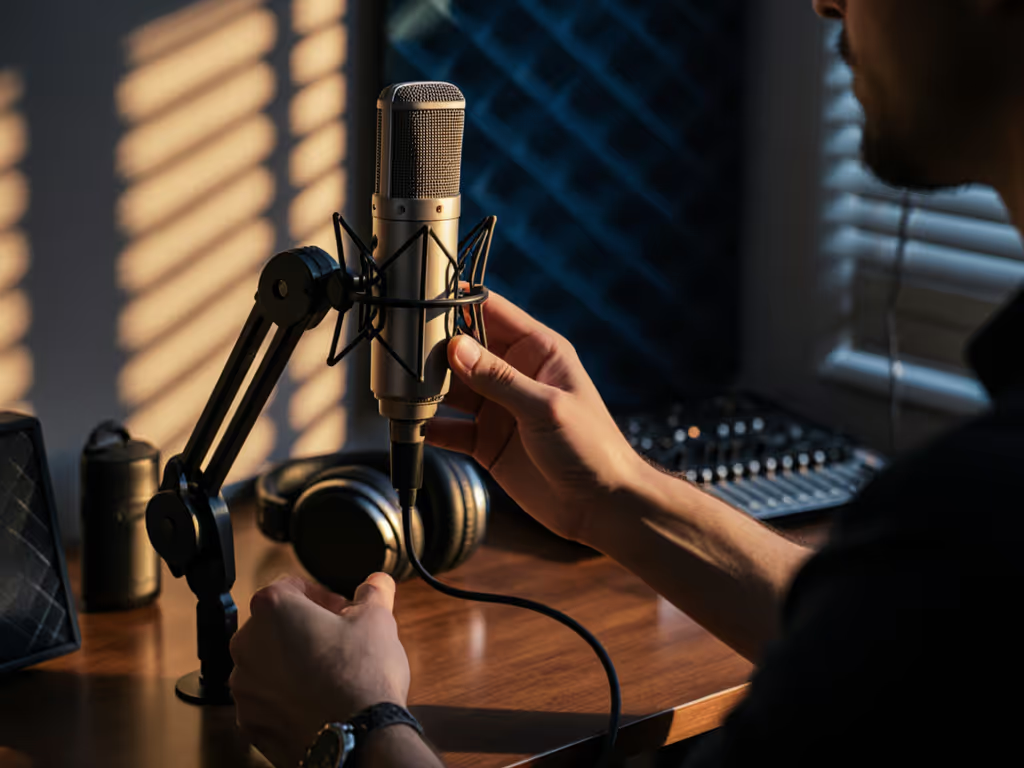
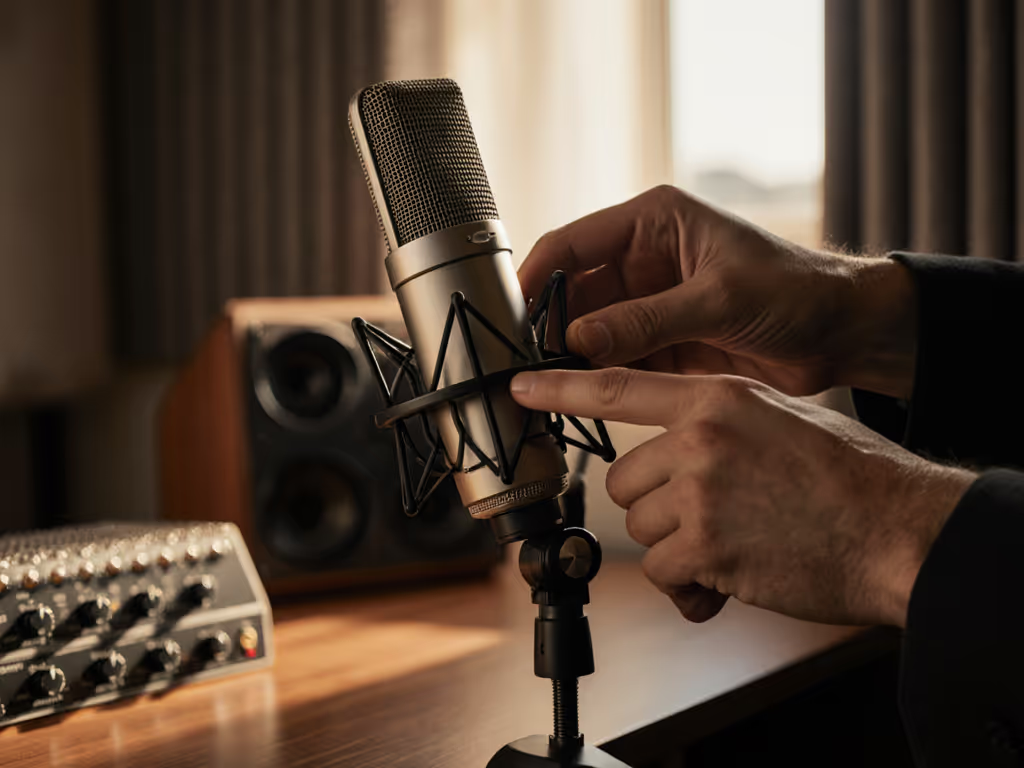
- Boom arm with integrated shock mount to isolate the microphone from stand vibration and handling noise.
Minimal treatment (a blanket and a closed door) eliminates most room-tone problems and shrinks your editing burden to near-zero. That is worth more than a $500 microphone in an untreated room.
Multi-Host and Remote Recording: Consistency Across Voices
If you co-host or interview guests, match gain and microphone placement across all speakers. Assign each host a fixed distance from their microphone (e.g., "always 6 inches") and a reference loudness: "sponsor reads at this conversational level." Use closed-back headphones to monitor all inputs at the same perceived level. If one guest sounds thinner or boomy, adjust their distance or mic angle, not their gain (which risks further editing).
For remote guests, request they use a headset microphone at a fixed distance and send a 10-second test track before recording. Ask: "Does your voice sound bright, thin, muddy, or neutral?" Map their sound to your reference, then level-match during mixing, not during recording.
The Path Forward: Build Once, Refine Forever
Start with a USB dynamic microphone and an accessible recording platform if budget is tight ($100-300). Verify gain and room behavior with test recordings, then scale to XLR and an accessible interface when you are confident in your process ($400-800 additional).
Capture clean, commit early, and keep sponsors breathing between words. Your audio is your credibility, and minimizing editing time is not a luxury; it is liberation. A microphone that creates fixable problems, paired to a cleanly gained chain in a treated pocket, beats a $1,000 mic buried in room noise every time.
Related Articles